In my previous blog, I mentioned how I got tired of switching providers every time I hit a rate limit, and how I finally found Bifrost, which actually solves that. If you haven't read it, please do check it out from here!
Since then, I have been daily driving Bifrost with multiple coding harnesses including OpenCode, jcode and Pi, to name a few. Initially, I was perfectly fine with just the fallback mechanism and complexity routing. But every time I skimmed through the dashboard, the other features kept intriguing me.
So, I sat down and decided to explore all of them one-by-one, and see if any of them solve problems that I'm not even aware of yet. So, let's begin!
Setting Limits With Virtual Keys
So, you can create a virtual API key and set custom limits on how many tokens and requests it can allow in a set time period.
Setting it up is pretty easy through the dashboard.
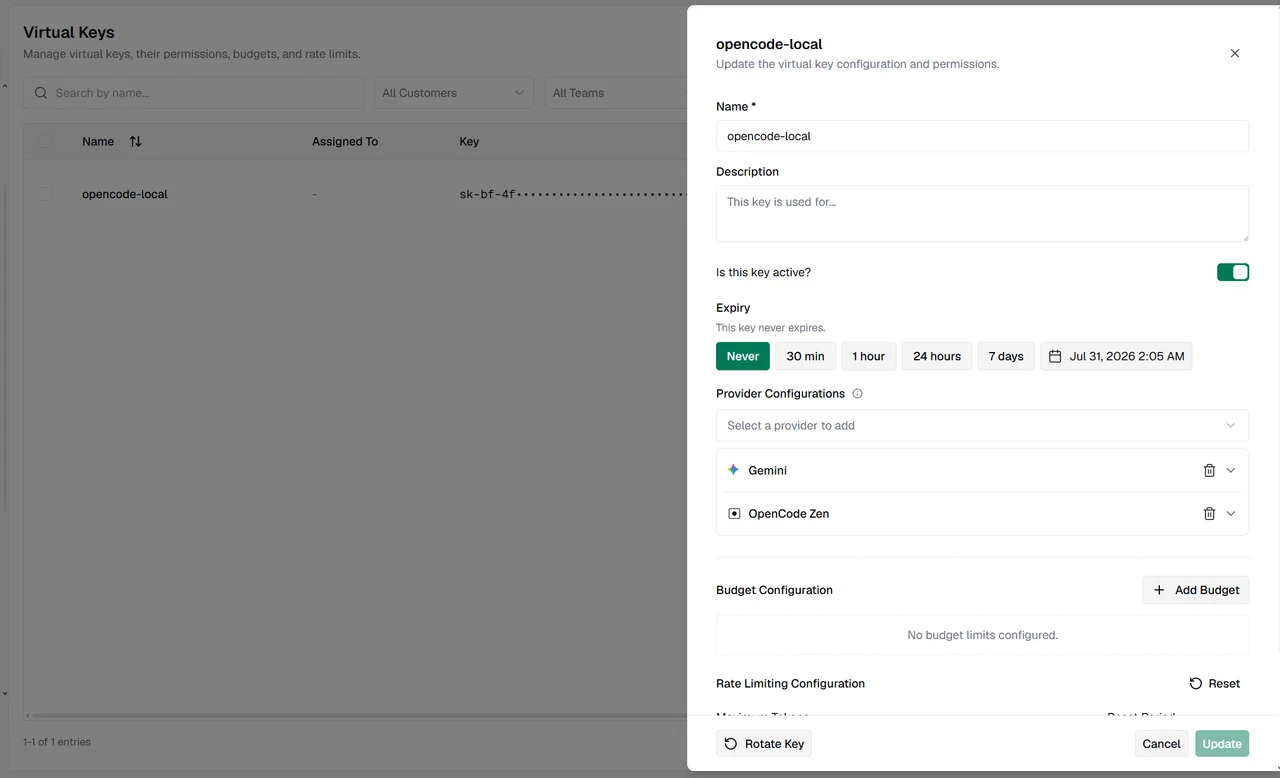 The Bifrost virtual keys dashboard, creating a key named opencode-local with Gemini and OpenCode Zen attached to it
Just give it a name and an expiry duration, then add the providers and the models you want to allow through this key. And done! You can take this key and set it up in your desired harness, similar to the way we discussed in the earlier blog.
But this time, we should make a separate file for the key, and keep it in the same directory as our opencode config file. I've named mine bifrost-virtual-key, and it holds nothing but the key itself. OpenCode can read a value straight out of a file using the {file:...} syntax, and a relative path there resolves against the config file's own directory, not wherever you happen to launch the terminal from. So the key never has to sit inside the config, and never has to go into git.
After that, pasting this in our config:
{
  "model": "bifrost-local/gemini/gemini-2.5-flash",
  "small_model": "bifrost-local/gemini/gemini-2.5-flash",
  "provider": {
    "bifrost-local": {
      "npm": "@ai-sdk/openai-compatible",
      "name": "Bifrost Local",
      "options": {
        "baseURL": "http://localhost:8080/v1",
        "apiKey": "{file:./bifrost-virtual-key}"
      },
      "models": {
        "gemini/gemini-2.5-flash": {
          "name": "Gemini 2.5 Flash via Bifrost"
        },
        "opencode-zen/big-pickle": {
          "name": "Big Pickle via Bifrost"
        }
      }
    }
  }
}
The small_model field there is worth a word, since it's easy to skip past. OpenCode uses it for cheap background work like generating session titles, and if you don't set it, it goes hunting for a cheaper model on its own. Pointing it at the same model keeps everything flowing through one virtual key, which is the whole point of the exercise.
This feature is pretty useful when you are experimenting with different models, and for long-horizon tasks, where you don't want the model to run indefinitely and get stuck in a loop, just burning expensive tokens. Or whenever you want fine control over the MCPs, tools or skills that your harness can get access to.
So let's set a deliberately tiny limit and watch it bite.
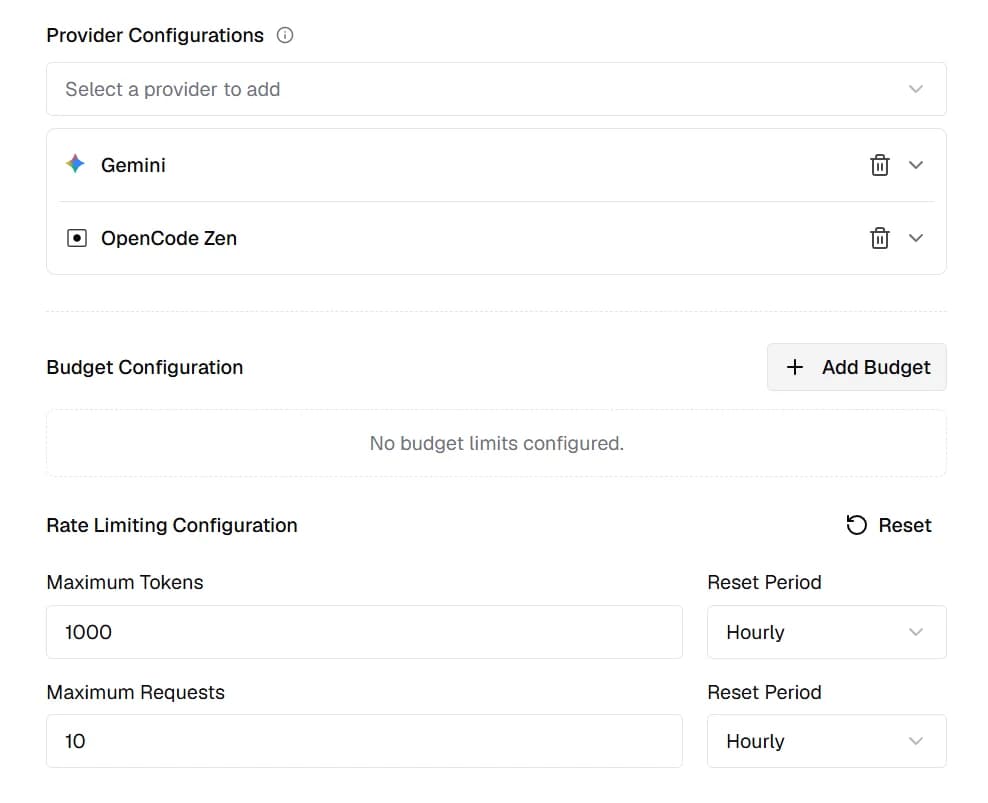 Rate limiting configuration for the virtual key, set to a maximum of 1000 tokens and 10 requests, both resetting hourly
As you can see, I've set a maximum of 1000 tokens and a maximum of 10 requests, both resetting every hour. That token budget is small on purpose, because I want to hit the wall quickly rather than wait around for it. I've already connected this key to my OpenCode setup, so a couple of ordinary messages should be enough to get me blocked.
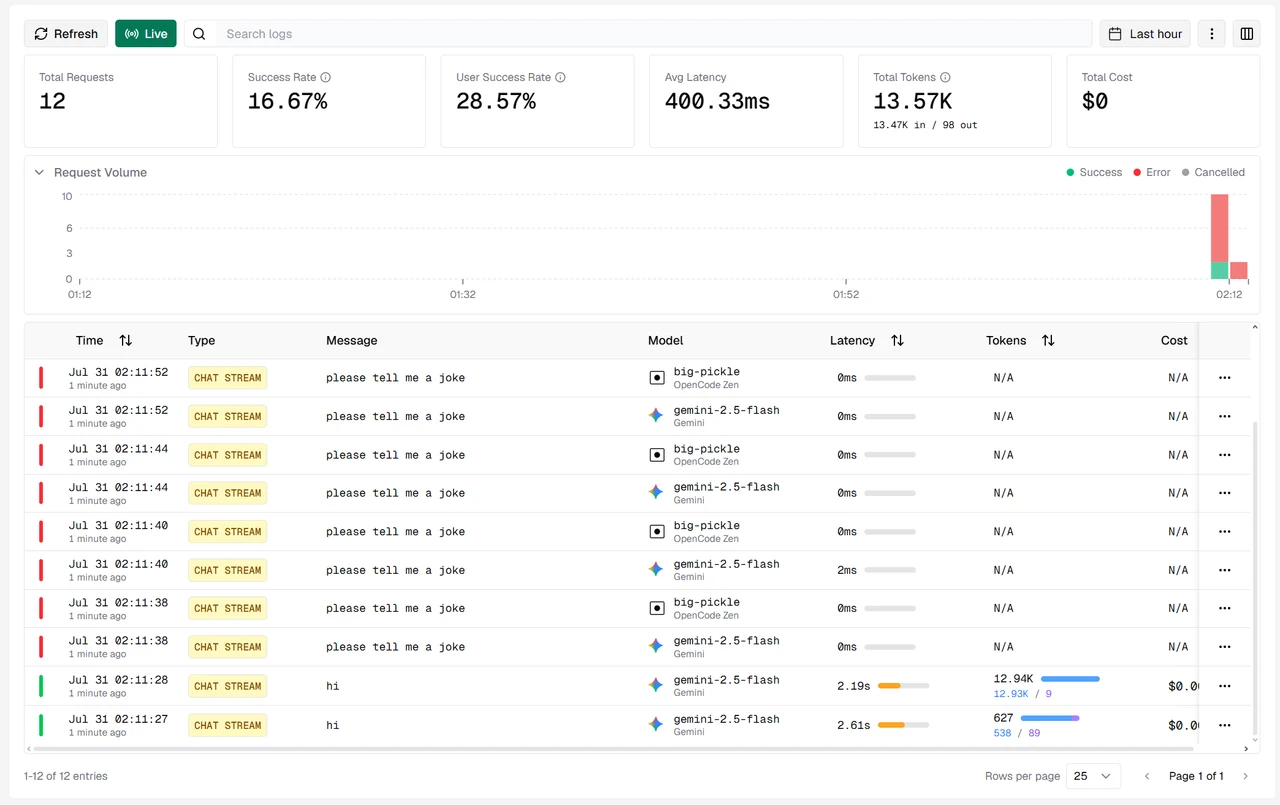 Bifrost logs showing two successful requests that burned 13.57K tokens, followed by ten failed requests once the token limit was crossed
And that's exactly what happened, though the way it happened is the interesting part. My first message cost 627 tokens and went through fine. The second one went through too, and quietly cost 12.94K tokens by itself. Every single request after that got rejected, which is why the success rate sits at 16.67%, only 2 requests out of 12.
So the limit isn't checked against the size of the request you're about to make, it's checked against what you have already spent. A request gets waved through as long as you're under budget at that moment, and it can then blow straight past the ceiling on its own. Worth knowing before you set a budget you actually care about, because the cap decides when the blocking starts, and not how much you can spend in total.
One more thing to notice in that screenshot: each failed attempt shows up twice, once against gemini and once against big-pickle. That's the fallback rule from the last blog doing its job. Bifrost tried the fallback, and the fallback got refused by the same virtual key, which is exactly what you'd want.
Now, let's see what more we have in our box!
The MCP Gateway
This is the one that I regret not trying earlier.
Using the MCP gateway we can connect all our MCPs in one place, and then selectively allow access to our harnesses using the virtual key. So instead of every harness carrying its own copy of every MCP config, Bifrost holds them all, and each key gets to see only the slice you've allowed it.
There are a huge number of MCPs already present in the MCP Server library, 123 of them at the time I'm writing this, and it's just a one-click installation from there. As you can see in the screenshot below, I have already installed the Context7 MCP. And now, I will just add this to my virtual key from the MCP Client Configuration option, and we are good to go.
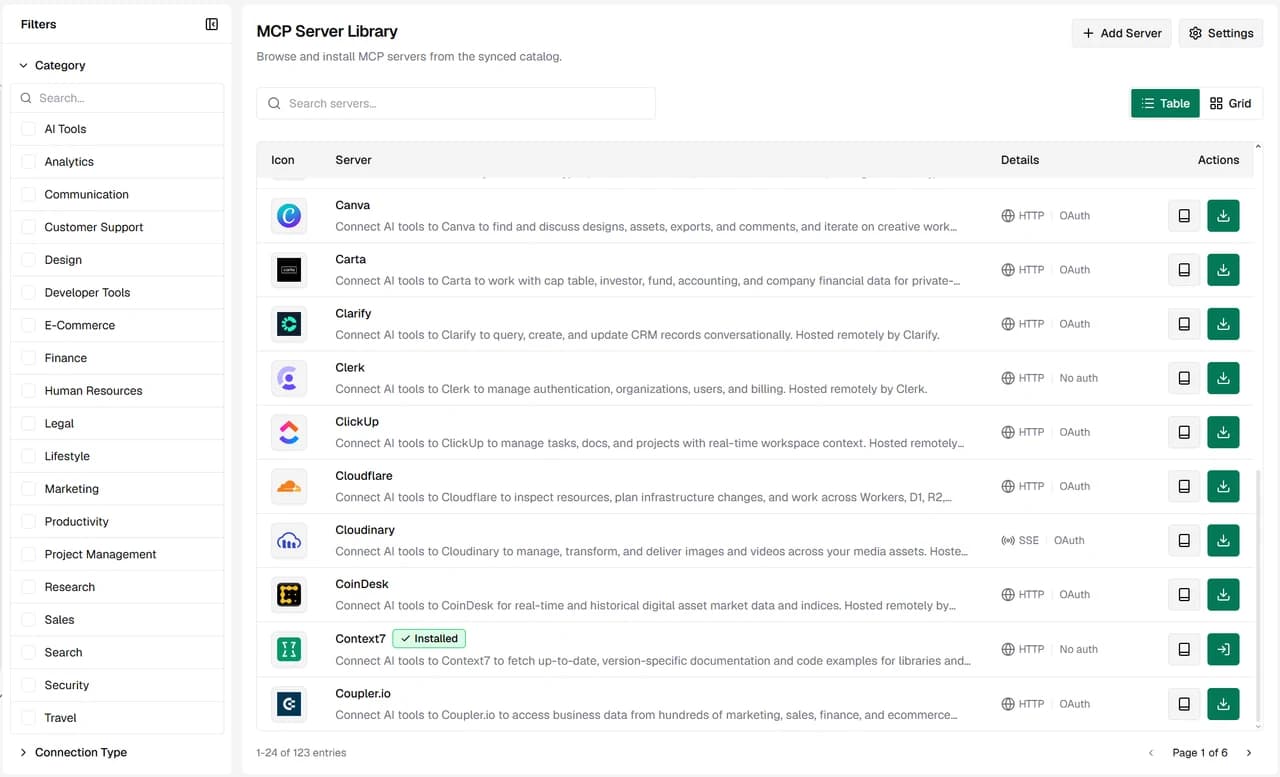 The Bifrost MCP Server Library showing 123 available servers, with Context7 marked as installed
As we have already added our virtual key to our OpenCode harness, we can now easily use the Context7 MCP from there. Bifrost exposes every MCP you've installed at a single endpoint, /mcp, and the virtual key you send as a Bearer token decides which tools come back. So from OpenCode's side, this looks like one ordinary remote MCP server, no matter how many you have installed behind it.
Here's the block to add to the config file:
{
  "mcp": {
    "bifrost": {
      "type": "remote",
      "url": "http://localhost:8080/mcp",
      "enabled": true,
      "oauth": false,
      "headers": {
        "Authorization": "Bearer {file:./bifrost-virtual-key}"
      }
    }
  }
}
The oauth: false line matters more than it looks. OpenCode will try to start an OAuth flow on its own when a remote MCP server answers with a 401, so you have to tell it not to bother here, because we are authenticating with a fixed key instead.
Let's test it by asking OpenCode something that can only be answered by fetching live documentation, and then check whether the tool calls actually show up on the Bifrost side.
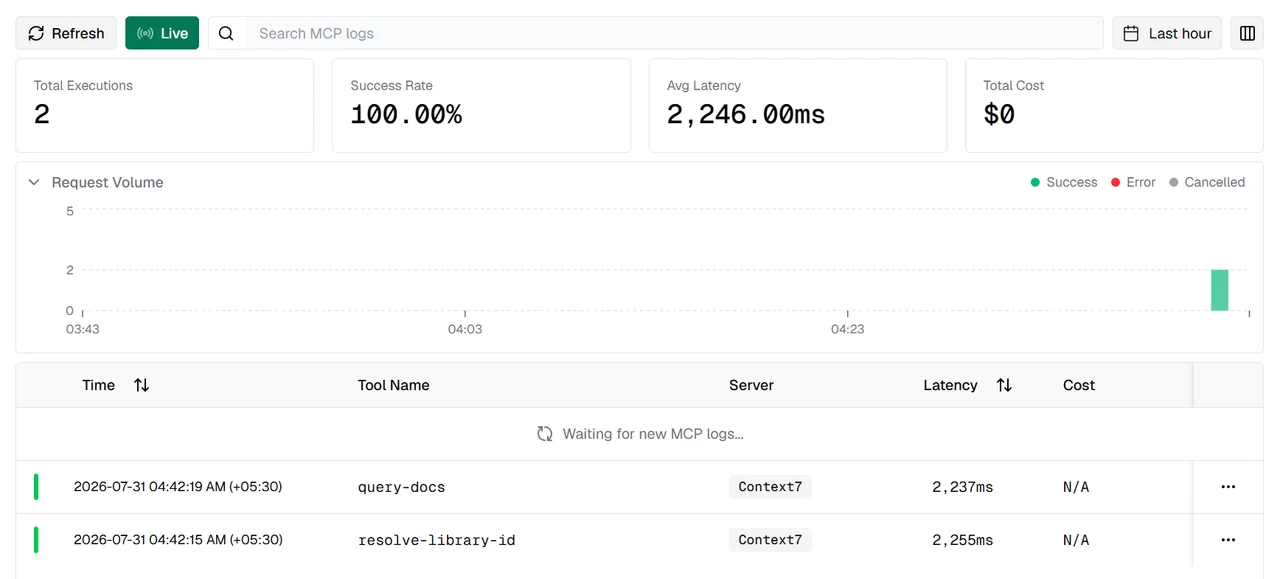 Bifrost MCP logs showing two successful Context7 tool executions, resolve-library-id and query-docs
And there they are. Two tool calls, resolve-library-id followed by query-docs, both against the Context7 server, both successful. So the MCP is working perfectly as intended, and I never had to put a Context7 config into OpenCode at all.
Now, Bifrost has a similar thing going on for prompts and skills as well, so let's check them out too!
The Prompt and Skills Repositories
So, before coming to the skills, let's talk about the Prompt Repository. Here, we can test our prompts against various models, see the results and tweak them. This is really important, because I was able to thoroughly test my prompts here before turning them into a skill.
And as you can see, I've created a code review prompt that accepts the language, the review focus and the code snippet, and gives you a detailed review of it, along with the revised code if your code needs any fixing.
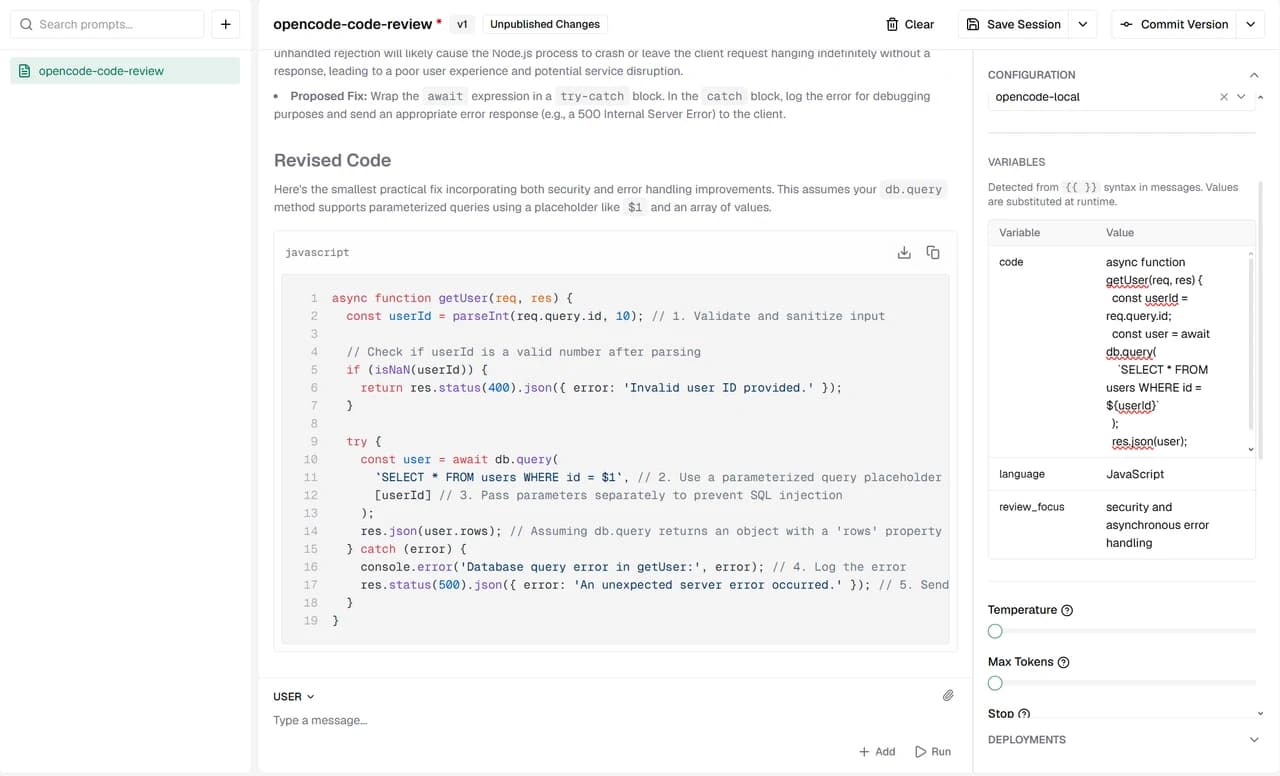 The Bifrost prompt playground running a code review prompt, with code, language and review_focus variables filled in on the right
The variables are the neat bit here. Anything you write as {{ code }} or {{ language }} inside the prompt gets picked up automatically and turned into a field you can fill in, so you're changing the inputs and not rewriting the prompt every time you want to try something.
And prompts here are versioned, which I didn't expect. You keep editing in a session, and when something is actually good you commit it as a version, so the thing your application calls later is a version you deliberately shipped, and not whatever you happened to be typing five minutes ago.
Now once you are done testing your prompts, you can create a skill out of that as well, and add it in the skills repository.
I've created this skill, safe-bug-fix, that can be used to fix bugs in a codebase. It's a plain SKILL.md, with a "when to use" section, a numbered workflow and a set of safety rules, and it's targeted at OpenCode.
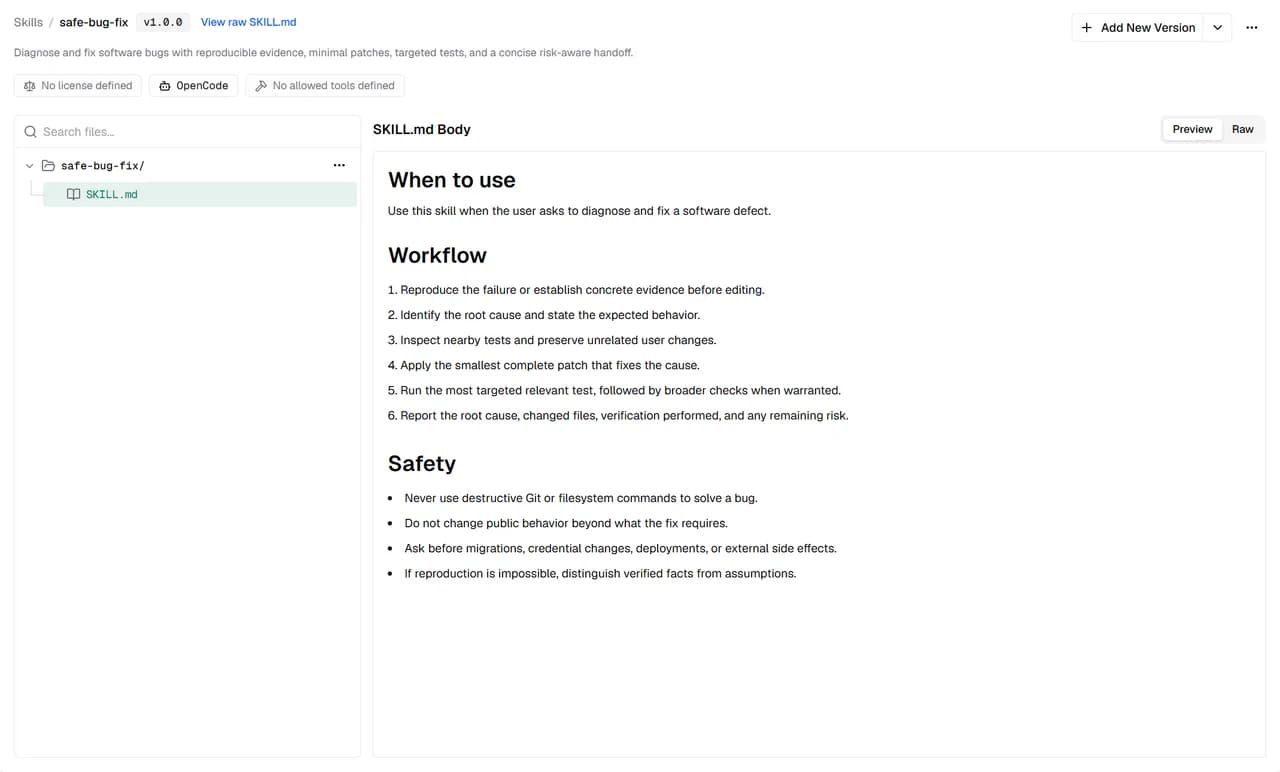 The safe-bug-fix skill in the Bifrost skills repository, showing its SKILL.md body with When to use, Workflow and Safety sections
After creating the skill, we need to configure OpenCode as well, so that it can actually use the skills.
For that we can paste the following code snippet in our OpenCode config:
{
  "permission": {
    "skill": {
      "*": "allow"
    }
  }
}
The * there means every skill is allowed. You can be pickier if you want, since the same block takes deny and ask alongside allow, and the keys accept wildcards, so something like internal-* can be denied while everything else stays open.
And you will be able to use it inside OpenCode anytime you want!
Now, the next most useful feature that I found is setting up custom log headers. Let's talk about that then!
Custom Log Headers
So, while I was primarily using my key on OpenCode, I started to use it on jcode as well. But I was unable to identify from the logs which request was coming from which harness.
Hence I decided to find a solution, and found that we can create custom log headers in Bifrost from the Log settings. It was pretty simple to set up.
The idea is straightforward: you name a header, and from then on Bifrost copies that header off every incoming request and stores it in the log entry's metadata. I added the header name X-Request-Source.
After that, I configured OpenCode to actually send that header, by pasting this in the config file:
{
  "provider": {
    "bifrost-local": {
      "npm": "@ai-sdk/openai-compatible",
      "name": "Bifrost Local",
      "options": {
        "baseURL": "http://localhost:8080/v1",
        "apiKey": "{file:./bifrost-virtual-key}",
        "headers": {
          "X-Request-Source": "opencode"
        }
      }
    }
  }
}
And, that's it!
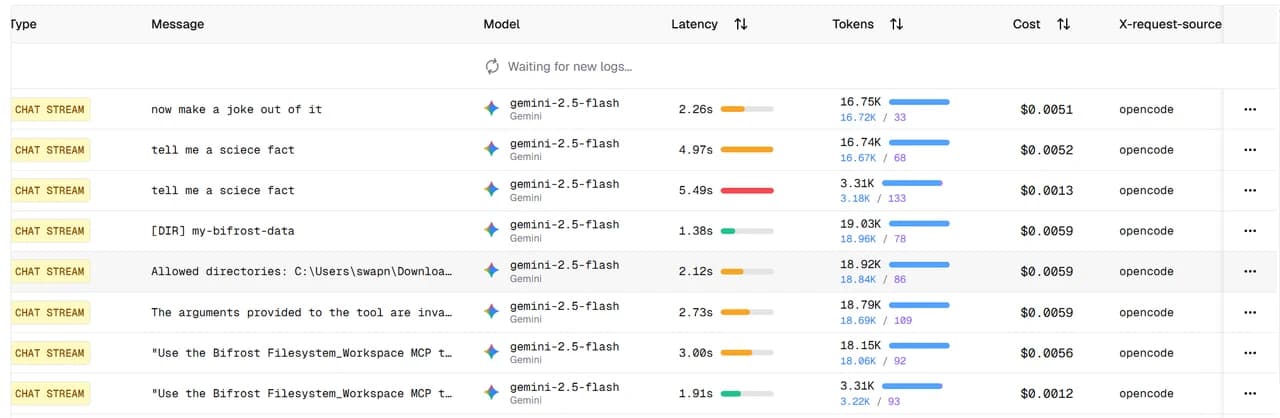 The Bifrost logs table with an extra X-request-source column, showing opencode against every request
As you can see in the screenshot above, there's now an extra column in the logs, and I can tell that these requests are coming from OpenCode. Repeat the same block in your other harness with a different value, and the whole picture separates out.
There's also a shortcut I found afterwards, which I'd have used if I had known about it. Any header you send with an x-bf-lh- prefix gets captured into the log metadata automatically, without configuring anything on the Bifrost side at all. The prefix gets stripped and whatever is left becomes the key. So x-bf-lh-source: opencode would have got me the same result with one less step.
It was as simple as that!
So, What's Actually Worth Using?
Honestly, more of it than I expected, and a bit annoyingly so. Every one of these had been sitting in that sidebar the whole time I was happily using Bifrost as a fallback router and nothing else.
The MCP gateway is the one I'd tell you to try first. Moving every MCP out of individual harness configs and into one place, then handing each harness a key that decides what it can see, fixed a mess I had stopped noticing because I'd been living in it for so long. Virtual keys are the ones I'd keep the tightest grip on, now that I know the limit gets checked against what you have already spent and not against what you're about to spend. And custom log headers took about two minutes and solved something I'd been squinting past for weeks.
The prompt and skills repositories I'm still making my mind up about. Testing a prompt properly before shipping it is genuinely useful, and the versioning is better than what I was doing before, which was nothing. But I've not used them long enough to tell you whether they replace the way you already keep your prompts, or just sit beside it.
So if you're running Bifrost as a gateway and never got past routing, go open that sidebar. There's more in there than I expected, and all of it stays local.
And if you try any of these, or you've found something in Bifrost that I've still not touched, tell me about it, or come find me on X.